A Word macro for narrative Zotero citations
One click turns a Zotero citation like (Smith & Jones, 2026) into Smith and Jones (2026), and Zotero still keeps track of it.
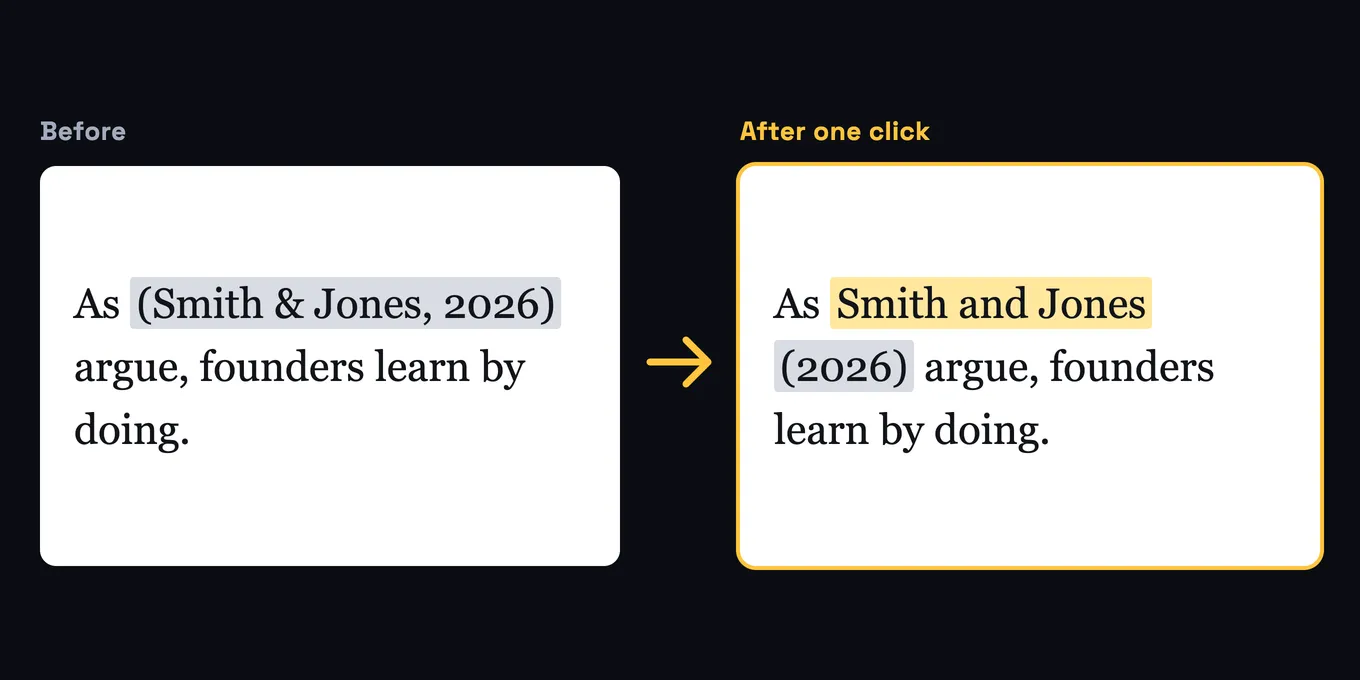
APA has two ways to cite a source. The parenthetical way puts everything in parentheses at the end of a sentence: (Smith et al., 2026). The narrative way works the authors into the sentence itself: Smith et al. (2026) argue that… Academic writing uses the narrative form all the time, and Zotero makes it surprisingly fiddly.
Zotero’s own route is to open the citation dialog, click the citation, check Omit Author, close the dialog, and then type the author names yourself. That last part is where mistakes creep in. You have to remember that “&” becomes “and,” that three or more authors become “et al.,” and that a group author keeps its full name. Do that a few dozen times in a research paper and it gets old fast.
So I wrote a small macro that does it in one step.
What it does
Put your cursor in a Zotero citation and run the macro. It reads the author list straight from Zotero’s data and types the names in front of the citation using APA 7 narrative rules:
- One author: Smith
- Two authors: Smith and Jones
- Three or more: Smith et al.
- Group author: World Health Organization
Then it turns on Omit Author inside the citation and changes the text to just the year, like (2026). Because the change is made inside Zotero’s own data, Zotero sees the citation as unchanged and won’t undo your work the next time you click Refresh. It also keeps page numbers and prefixes, so (e.g., Smith et al., 2026, p. 5) becomes Smith et al. (e.g., 2026, p. 5).
It works with Zotero’s delayed citation updates turned on, and the whole change can be undone with a single Undo.
Good to know
- It works on citations with one source. For a citation with several sources, split it first.
- It needs a current Zotero citation. If it finds an older format it can’t read, it tells you instead of guessing.
- If it can’t safely update the year text on its own, it adds the names and asks you to click Refresh in the Zotero tab.
- It runs in Word for Mac and Windows. Try it on a copy of a document the first time.
How to set it up
- Download ZoteroNarrative.bas with the button at the top of this post.
- In Word, open the Visual Basic Editor. On a Mac, go to Tools, then Macro, then Visual Basic Editor. On Windows, press Alt+F11.
- Choose File, then Import File, and pick ZoteroNarrative.bas. Close the editor.
- Optional: give it a keyboard shortcut. On a Mac, go to Tools, then Customize Keyboard, pick the Macros category, and choose MakeNarrative.
- To use it, insert a normal Zotero citation, leave your cursor inside it or right after it, and run MakeNarrative.