SpeedGrader Pop-Out: grade on two screens
A small browser script that moves the student's work into its own window, so SpeedGrader's rubric and comments get the whole screen.
Download the script (.user.js)
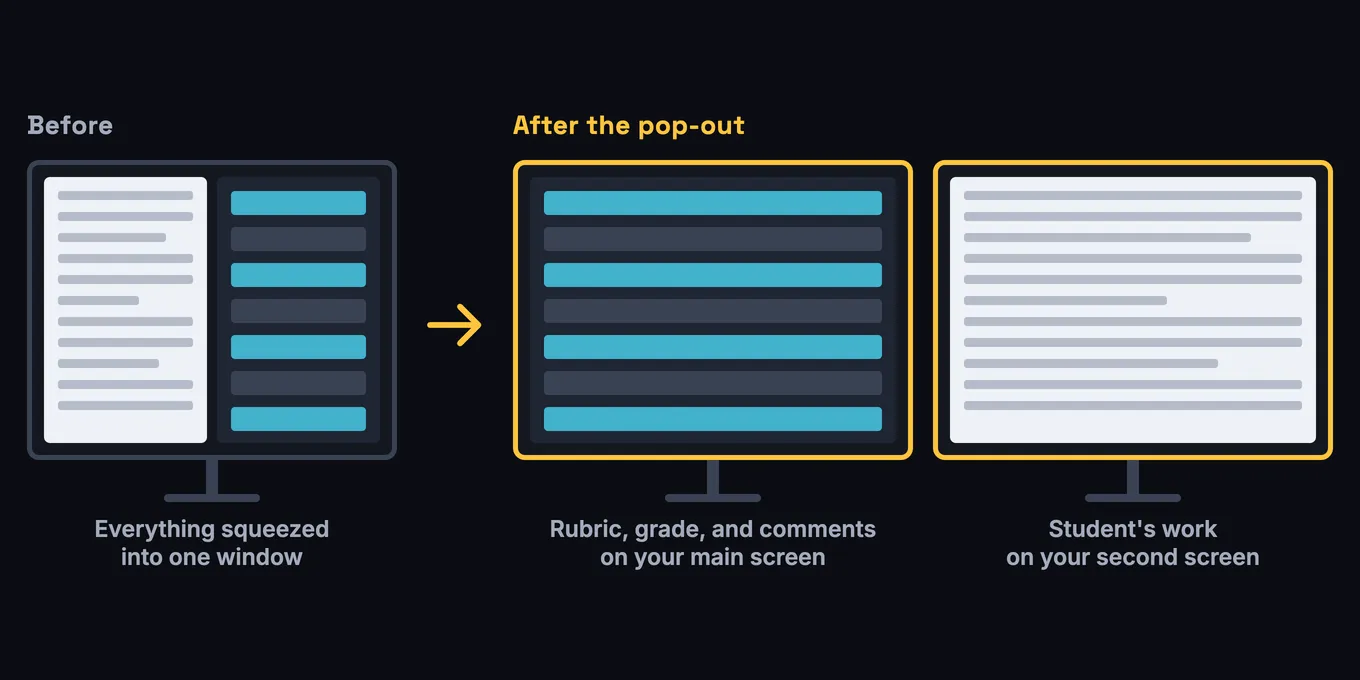
SpeedGrader in Canvas squeezes two things into one window: the student’s work on the left and the rubric, grade box, and comments on the right. When I’m grading a big stack of papers with a detailed rubric, neither side has enough room. I have a second monitor sitting right there, and Canvas gives me no way to use it.
This script fixes that. It adds a button to SpeedGrader that pops the student’s submission out into its own window. You drag that window to your second screen once, and SpeedGrader’s grading side stretches to fill the whole first screen.
How it works day to day
- Move between students the way you always do, with the arrows or the student menu. The pop-out window switches to the new student on its own.
- Click Bring submission back, or just close the pop-out window, to go back to the normal side-by-side view.
- Option+Shift+P on a Mac (Alt+Shift+P on Windows) toggles it from the keyboard.
- After you reload SpeedGrader, click the button once more. It reuses the window that’s already on your second screen.
It doesn’t touch grades
The pop-out only shows the student’s work. It never saves anything. Grades, rubric scores, and comments are still entered in SpeedGrader exactly as before, and SpeedGrader is still the only window that saves. When I tested it, every grade and rubric score was identical before and after.
Where it may not work
- New Quizzes and other submissions that run inside an outside tool. Grade those in the normal layout.
- Media recordings. The pop-out falls back to Canvas’s submission preview page.
- A future SpeedGrader redesign. It supports both the classic SpeedGrader and the rebuilt one Canvas rolled out this year. If Canvas changes the layout again, the button may move to the bottom-left corner or stop following students.
- Canvas sites with their own web address. It runs on any address that ends in instructure.com. Many schools use their own address instead, like canvas.yourschool.edu. For those, add one line at the top of the script with that address.
This is my own script, not something from Instructure or my university. If you try it, check one file-upload assignment the first time.
How to set it up
- In Chrome, install the free Tampermonkey extension from the Chrome Web Store.
- Go to chrome://extensions, open Tampermonkey's Details, and turn on Allow User Scripts. Older versions of Chrome need Developer mode switched on instead.
- Download the script with the button at the top of this post and open it in a text editor. Click the Tampermonkey icon, choose Create a new script, delete the sample text, paste in the whole script, and save.
- Open any assignment in SpeedGrader and click Pop out submission in the header, just right of the gear icon.
- If Chrome blocks the pop-up, click the blocked pop-up icon in the address bar, choose Always allow pop-ups for your Canvas site, and click the button again.
- Drag the new window to your second screen and maximize it.